In older versions of Windows using an external projector with your laptop can be a difficult task. It seems like every laptop has a different function key combination to enable output for a projector. In Windows 7 that has finally been improved. Now, all you have to do is hit the Windows Key + P and the projector menu will be displayed.
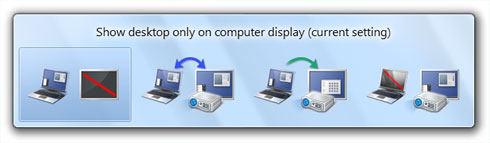
The on-screen display will allow you to:
- Show Desktop only on Computer
- Duplicate Desktop on Projector
- Extend Desktop to Projector
- Show Desktop only on projector
If you don’t like keyboard shortcuts you can also create a desktop or taskbar shortcut to the projector menu. To do that, create a shortcut to "C:\Windows\System32\DisplaySwitch.exe".
Displayswitch.exe also has command line parameters that allow you to create a shortcut that will set a specific display mode.
- /internal
- /clone
- /extend
- /external
If you wanted to create a shortcut that would turn off your external monitor then point a shortcut to "C:\windows\system32\displayswitch.exe /internal".
Microsoft Edge on Windows 10 includes the Windows Defender SmartScreen service for years that prevents users from accidentally browsing to known malicious and fake phishing websites. While Microsoft Edge is a great browser and has many very strong security features, Microsoft understands that many people choose to use Google Chrome. As such, Microsoft still cares about the security of the web browser...
Read More
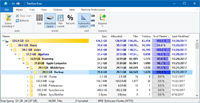
It happens every few months. My operating system drive runs out of space, and I must begin the hunt for things to delete or move to another drive. As a first step using a cleanup utility such as CCleaner is helpful, but it only finds the easy targets such as temporary files. Unfortunately, deleting these files does not typically...
Read More
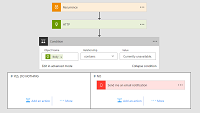
Shopping for a hard to find item on Amazon.com that is always sold out? I was recently on the hunt for an external GPU enclosure that would show up in small quantities on Amazon. After failing to snag one by randomly checking periodically, I figured there must be a better way. Microsoft Flow to the rescue!
Read More
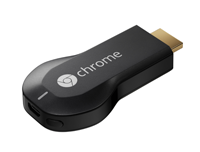
If you own a Google Chromecast streaming device, you can easily share a browser tab in Chrome browser or even your entire desktop. This can be very useful when presenting from your laptop or if you just want to watch something on a big screen that is only on your PC. The only requirement is you must be on the same network as your Chromecast...
Read More