 Windows 7 and Server 2008 include a hidden power efficiency diagnostic report that can help make your computer more energy efficient. The report is generated through the powercfg utility and monitors your computer for 60 seconds. Power settings, hardware and what you computer is doing is all monitored to identify power waste. Once completed, the report will show errors, warnings and general information about the power efficiency capabilities of your hardware and what is preventing it from operating efficiently.
Generating the report requires access to an administrative level Command Prompt. Click on the Start Button, type in cmd, hold down CTRL and SHIFT and then hit Enter. That will start an administrative level command prompt.

Next, type in powercfg /energy and hit enter.
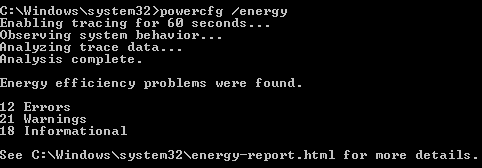
After the report is generated the file is placed in c:\windows\system32. Before you can open the report with a browser, copy the file to your desktop first. Both Firefox and Internet Explorer seem to have issues opening files from the System32 folder.

The Java Runtime Environment has become one of the most exploited components of any operating system. Even the US Department of Homeland Security warns users to disable java unless they have a really good reason to use it. For most of us the days of Web sites requiring you to run Java applets has long passed. However, there still are a good number of desktop applications written in Java so simply...
Read More
Port 3389 is the home of the remote desktop protocol that powers Remote Desktop Services on all modern versions of Windows. If your system has Remote Desktop enabled, it is listening for connections on port 3389. Since this port is both well known and can be used to attack accounts, it is low hanging fruit for script kiddies and bots looking for an easy target.
Read More
 The default flower user picture is displayed for new accounts and on various logon screens throughout the OS. Customizing this picture requires a simple file copy and doing so will allow you to personalize your PC or even display a corporate logo.
Read More
Microsoft included a batch rename feature in the latest version of Windows allowing you to select multiple files, right click on one and select rename. All of the selected files will be renamed with the name you provided and a number. This functionality works well for basic files but does not provide any flexibility in exactly how the files are numbered and also does not allow the file extension to...
Read More