There are two ways to stop applications that start when you startup your computer at login. You can use the System Configuration Utility or the new Software Explorer in Windows Defender. Take a look at the two sections to get control over your startup applications and speed up your computer:
Disabling auto-start applications with the System Configuration Utility
- Click on the Start Button and key in msconfig and hit Enter.
- Click on the Startup tab.
- Remove the check next to any items that you do not want to startup and click OK.
Disabling auto-start applications with Windows Defender
- Click on the Start Button and type in Windows Defender and hit Enter.
- Click on the Tools from the top menu bar.
- Click on Software Explorer.
- Hit Show for All Users.
- Select an application and then click either Remove or Disable.

If you own a Google Chromecast streaming device, you can easily share a browser tab in Chrome browser or even your entire desktop. This can be very useful when presenting from your laptop or if you just want to watch something on a big screen that is only on your PC. The only requirement is you must be on the same network as your Chromecast...
Read More
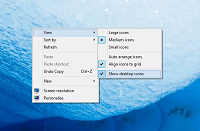
If you are a fan of minimalist desktop experiences, hiding the desktop icons are an easy way to clean up the Windows interface. Instead of saving everything to your desktop, use the default profile folders such as downloads and documents. Actually hiding all the icons on your desktop is a very simple customization hidden in the right-click context menu. Just right-click on the desktop, select View...
Read More
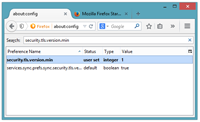
Google security researchers have published details about a major security flaw found in the SSL protocol that is used to encrypt data transferred between your browser and a web server. SSL is typically used in situations where logon credentials are validated...
Read More
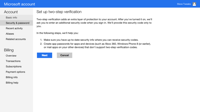
Enabling two-factor authentication is a great way to add an additional level of protection to your Microsoft account. Even if your password is stolen, your account is still protected because two-factor authetication requires an additional level of verification to log in. Microsoft calls their version of two-factor authentication "two-step verification" and it works by providing you with a random code...
Read More