In XP Pro, in order to get your uptime you must execute the SYSTEMINFO command at the CMD terminal.
As you know, this produces other system information output, and you have to scroll up to see your uptime.
If you wish to receive ONLY your uptime information, simply copy and paste the following into notepad
@echo.
@systeminfo | @find "System Up Time:"
@echo.
And save as UPTIME.BAT (save to your windows dir if you want to be able to access it anywhere)
Now when you type UPTIME you will see just:
System Up Time: 5 Days, 20 Hours, 13 Minutes, 46 Seconds
Also, if you wish to create a shortcut to IP.BAT, or run it via the Run command, it may close before you can view the result
To stop this, add @pause after the last @echo. command, this will cause the terminal to wait for your response before closing.
Example:
@echo.
@systeminfo | @find "System Up Time:"
@echo.
@pause
will result:
System Up Time: 5 Days, 20 Hours, 13 Minutes, 46 Seconds
Press any key to continue . . .
enjoy!
(information about the code: @echo. produces a blank line, @systeminfo | @find "System Up Time:" causes the output of systeminfo to be piped to the find command, which looks for the line containing "System Up Time:", find then outputs your system uptime, the optional @pause causes the terminal to wait for user input before continuing. The @ before each command tells the terminal not to echo the command being typed.)

If you own a Google Chromecast streaming device, you can easily share a browser tab in Chrome browser or even your entire desktop. This can be very useful when presenting from your laptop or if you just want to watch something on a big screen that is only on your PC. The only requirement is you must be on the same network as your Chromecast...
Read More
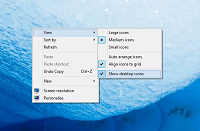
If you are a fan of minimalist desktop experiences, hiding the desktop icons are an easy way to clean up the Windows interface. Instead of saving everything to your desktop, use the default profile folders such as downloads and documents. Actually hiding all the icons on your desktop is a very simple customization hidden in the right-click context menu. Just right-click on the desktop, select View...
Read More
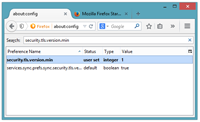
Google security researchers have published details about a major security flaw found in the SSL protocol that is used to encrypt data transferred between your browser and a web server. SSL is typically used in situations where logon credentials are validated...
Read More
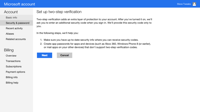
Enabling two-factor authentication is a great way to add an additional level of protection to your Microsoft account. Even if your password is stolen, your account is still protected because two-factor authetication requires an additional level of verification to log in. Microsoft calls their version of two-factor authentication "two-step verification" and it works by providing you with a random code...
Read More